Reading about a payment integration and actually testing one are two different things. Many guides describe the general flow but skip the small details that only show up once you run a real test. That gap leaves organizers unsure what to expect on their own site.
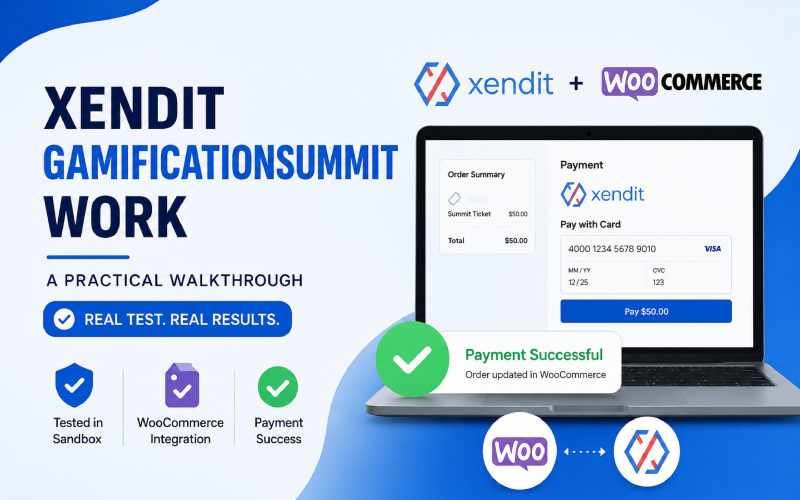
This walkthrough covers exactly how xendit gamificationsummit work integrations behaved during a real sandbox test on a WooCommerce setup, step by step, with the actual results observed.
What Was Tested
This test built directly on the setup covered in the main Xendit setup guide. The goal was simple: connect real Xendit test API keys to a WooCommerce store, then run a complete test purchase using a card payment, and record exactly what happened at each step.
Step 1: Getting Test API Keys
The Xendit dashboard has a Test Mode toggle near the top of the screen. Switching to Test Mode changes the dashboard color slightly and adds a clear Test Mode label, which makes it easy to confirm you are not in Live Mode by mistake.
From there, the Test Secret Key and Test Public Key sit under Settings, in the Developers or API Keys section. Both keys include the word development or test in their format, which is a useful way to double check you copied the right ones.
Step 2: Installing and Connecting the Plugin
The official Xendit Payment plugin installs the same way as any other WordPress plugin, through Plugins, then Add New. Activation took one click, with no extra configuration screens to fight through.
Connecting it to WooCommerce meant pasting both test keys into the Xendit payment method under WooCommerce Settings, then enabling Test Mode inside the plugin itself. Once saved, the settings page showed a clear Connected status, confirming the link between WooCommerce and the Xendit account worked.
Step 3: Running the Real Test Purchase
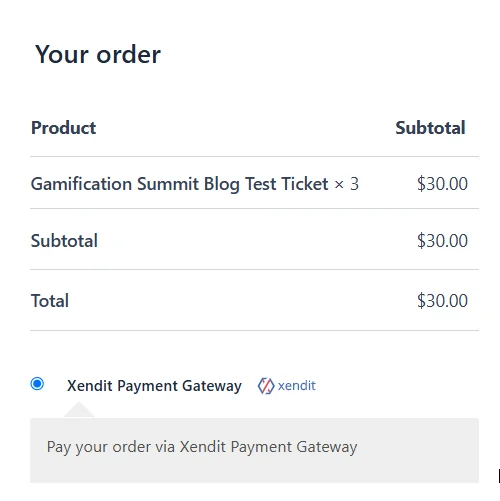
The test purchase ran in an incognito browser window, to simulate an actual buyer rather than a logged-in admin. A test ticket went into the cart, followed by checkout with basic test details.
At payment, Xendit was selected instead of Cash on Delivery, which had already been tested separately for price transparency. This time, a card payment was chosen specifically, using Xendit’s test card details for the sandbox environment.
What Actually Happened
This is the part most guides skip: what the process actually looked like once payment went through.
- Order status updated automatically in WooCommerce within about two minutes of completing payment, with no manual action needed
- The Xendit dashboard showed the transaction as Paid immediately, with no visible delay
- The overall flow felt smooth, with no extra steps or friction compared to the earlier Cash on Delivery test
- No errors, confusing screens, or unexpected prompts appeared during checkout

How This Compares to the Cash on Delivery Test
The earlier Cash on Delivery test confirmed the checkout displayed a clear, accurate total price with no hidden fees, which matters for the pricing transparency point covered in the platform evaluation guide. This test adds the payment processing side of the picture.
Together, the two tests show that both the price display and the actual payment flow worked correctly on this setup, using a card payment specifically. Card was the method tested here. E-wallet and virtual account options exist in Xendit’s sandbox as well, though they were not part of this particular test run.
What This Means for Your Own Setup
Plugins, themes, and hosting environments vary across sites, so running your own test with the same steps remains the most direct way to confirm your specific setup behaves the same way.
If you have not set up the base ticket platform yet, start with the full platform comparison guide before adding payment integration on top of it.
What a Problem Looks Like (Based on Xendit’s Own Documentation)
This particular test completed without any errors, which is useful but incomplete on its own. A test that only shows success does not tell you what to watch for if something goes wrong. Xendit’s own documentation covers this directly, so here is what it says.
According to Xendit’s documentation on payment statuses, a payment can return one of several statuses beyond a simple success, including PENDING, FAILED, EXPIRED, and CANCELED. A PENDING status is normal and simply means Xendit is still waiting for confirmation from the payment provider.
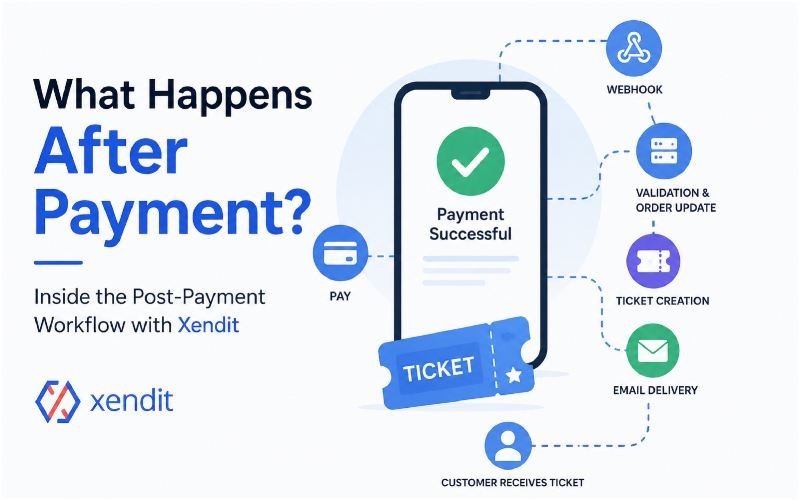
Xendit also documents a specific scenario called a delayed webhook, where a customer completes payment but the confirmation arrives later than expected, sometimes due to timing overlap with a payment request expiring. Xendit’s guidance for this case is direct: ask the customer to save their payment receipt, and hold the order rather than cancelling it, since Xendit’s average reconciliation time for delayed cases is up to 24 hours.
For a ticket seller, the practical takeaway is this: if a WooCommerce order does not update automatically the way it did in this test, check the order status before assuming the payment failed outright. A pending or delayed status is a documented, normal part of how the system works, not necessarily an error.
Frequently Asked Questions
What happens if a customer closes the browser tab before payment confirms?
The payment can still complete on the provider’s side even if the buyer closes the tab early. This is part of why Xendit recommends relying on the webhook notification rather than the browser session alone to confirm final payment status.
Does xendit gamificationsummit work with recurring or subscription-based tickets?
Xendit’s platform includes webhook support for recurring and subscription plans, covering events such as activation, cycle renewal, and failed retry attempts. This test covered a single one-time ticket purchase, not a subscription setup, so treat recurring billing as a separate integration to test on its own.
Is a sandbox test enough, or should I also test with real payments before launch?
A sandbox test confirms the technical integration works. Many organizers still run one small real transaction before fully launching, simply to confirm the live environment matches the sandbox behavior.
Final Thoughts
This walkthrough covered exactly how xendit gamificationsummit work integrations performed during a real test, not a theoretical description. The order updated automatically, the dashboard reflected the payment instantly, and the process stayed smooth from checkout to confirmation. Knowing what a pending or delayed status looks like matters just as much as knowing what success looks like.
For the broader setup process this test builds on, see the main Xendit guide. Questions about your own setup? Get in touch, and every message gets a personal reply.
Disclaimer
This article describes results from one specific test setup. Results can vary based on your platform, plugin versions, hosting environment, and payment method. This is not financial or professional advice. Verify your own integration independently before processing real payments.